
Yup, I really read a book translated by Google Translate. Four of them in fact! And the interesting part is that it wasn’t even that bad. I go over the background of why I did this in my post about Tsukumo no Reimei / Dawn of the Mapmaker, but basically I did this since it was the only option available to me. Tsukumo no Reimei only ever got the first book published in English, and I really wanted to read this series no matter what. Below is an overview of how I did it.
1) Obtain the books DRM free (legally).
I’m a little concerned about my method being exposed and subsequently blocked off, so I won’t elaborate on the exact details here. But do understand that I paid for these ebooks, there was no piracy whatsoever. I bought them, downloaded them normally, and then removed the DRM using a DRM removal tool available online that works with Calibre.
2) Add them to Calibre
The import is simple. If you’ve removed the DRM successfully, you’ll be able to open up and edit the books with no problems.
3) Install the Ebook Translator Plugin for Calibre
You can download the plugin on their github page, and then install into Calibre using the “Load Plugin from File” option. They have a guide on how to install it on their own page.
4) Translate the book
This is the part where I’m going to go into a bit of detail since the available guides were confusing.
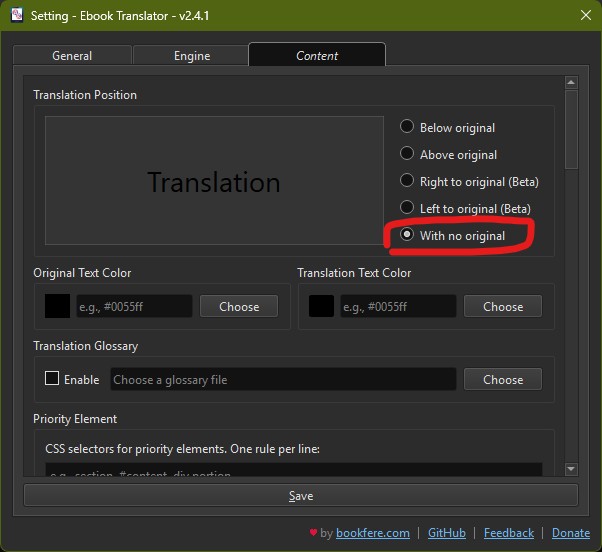
- Open up the settings menu for the Ebook Translator plugin and go to the Content tab. Then change the Translation Position to “With no original”. This will only display the English text in the final epub. If you prefer one of the other options (which leaves in the original Japanese text), you can select those instead.
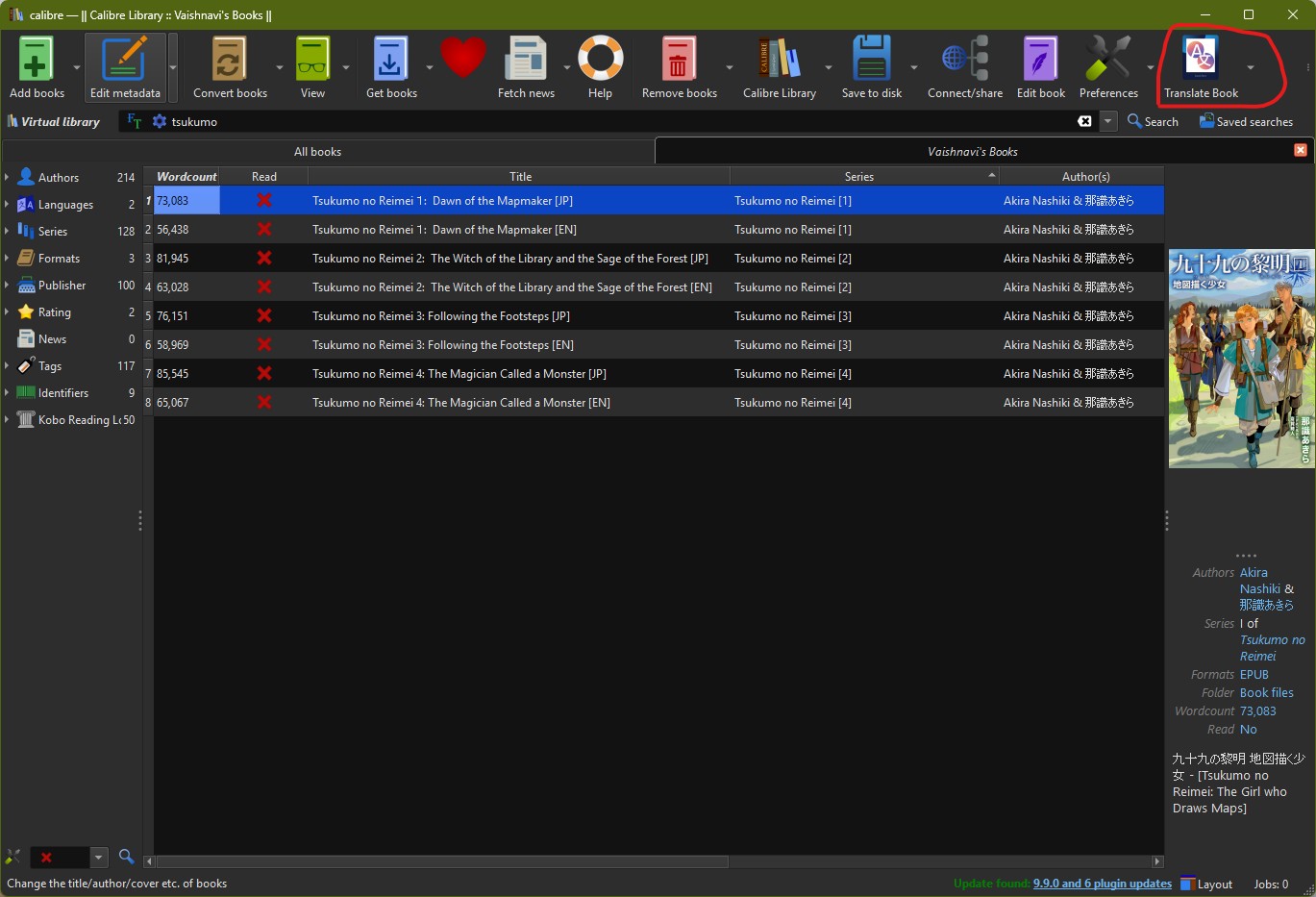
- Next, highlight the book you want to translate, and then click the little downwards arrow next to the Ebook Translator plugin on the top menu bar.
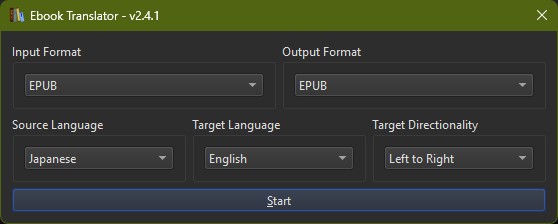
- This will open up the settings for the advanced mode. Pick the settings that apply to your book. For example, I set the Source Language to Japanese, and set the Target Directionality to “Left to Right”.
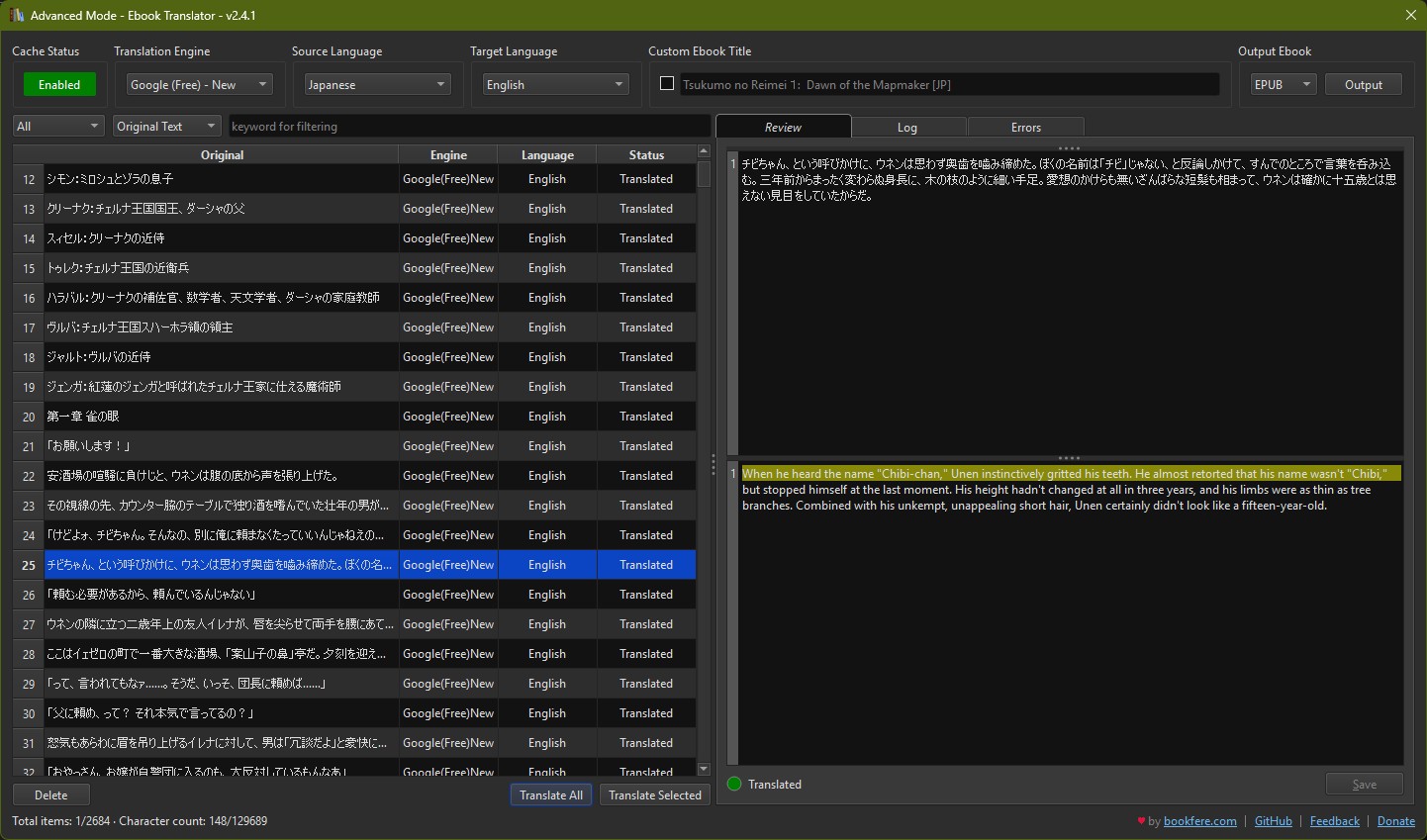
- Once you hit “Start”, it will process a bit before opening a page like below. On the left is all the original paragraphs in the book, and on the right is a preview of what each paragraph’s translation is. Since I haven’t translated anything for this sample, it’s blank for now. Here, you just need to set the Translation Engine to Google Free (or Google HTML). Afterwards you can hit the “Translate All” button. If you’re interested in using a more sophisticated Translation Engine, this plugin has the option for using AI, such as Claude, Gemini, ChatGPT, or DeepL pro. For those you need to pay for tokens and have an API key that you can use. I won’t go into that here since I’m just using Google Translate, which is free.
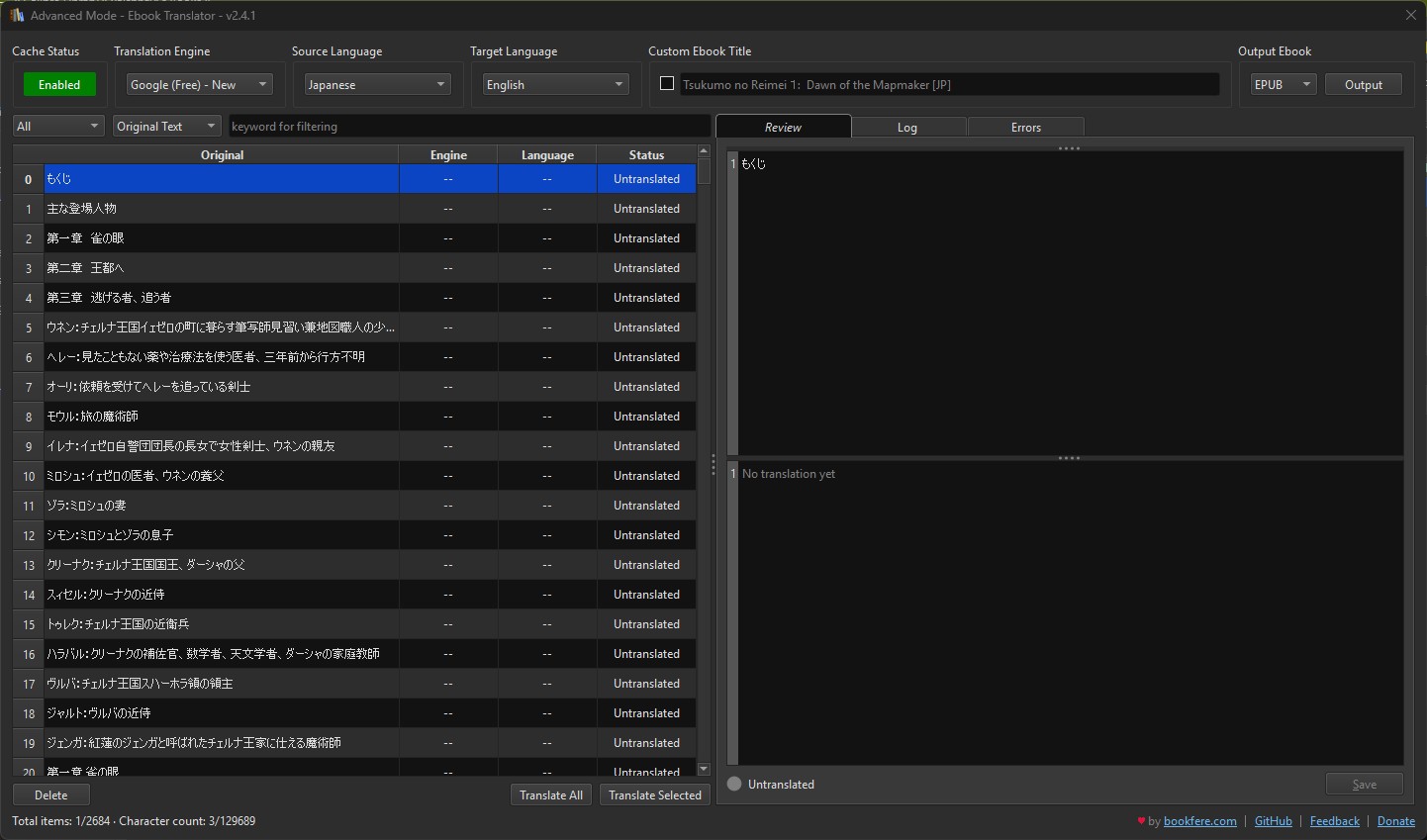
- Once you have all the text translated, you can check the “Custom Ebook Title” and edit the name however you like. Once you’re done, you just confirm the format you want (by default it’s set to epub), and then click “Output”.
5) Enjoy your new book in English!
The plugin will process for a while, and then output your book into English! You can then use Calibre’s existing tools to add a Table of Contents and any other minor tweaks or editing you want to do.
It’s important to note that this is still Machine Translation, so the translation is imperfect at best. It’s enough to understand the plot, but Google Translate struggles with keeping the genders of characters consistent, or certain expressions that aren’t meant to be words like “Hah?” or “eh?” in Japanese. (It translates them as “teeth” and “picture” lol). And Google Translate certainly isn’t winning any awards for it’s prose, which is missing the nuance and character of a human translation.
Still, for someone who isn’t able to read the language fluently, it’s alright. It’s better than nothing, and I was still able to enjoy the story and find out what happened at the end. I’m honestly kind of impressed, since I remember how atrociously wrong Google Translate used to be. Now I think it’s even slightly better than DeepL.
Comments
Comments are fetched from the Fediverse. You can join the conversation by replying to this post on Hollo. New replies will appear here after the next site rebuild. If you don't have a fedi account, you can send me your comment below.